Menu Bar
JackMate lives in your menu bar. The icon is always present, even with the window closed. You keep control of Jack without ever switching applications.
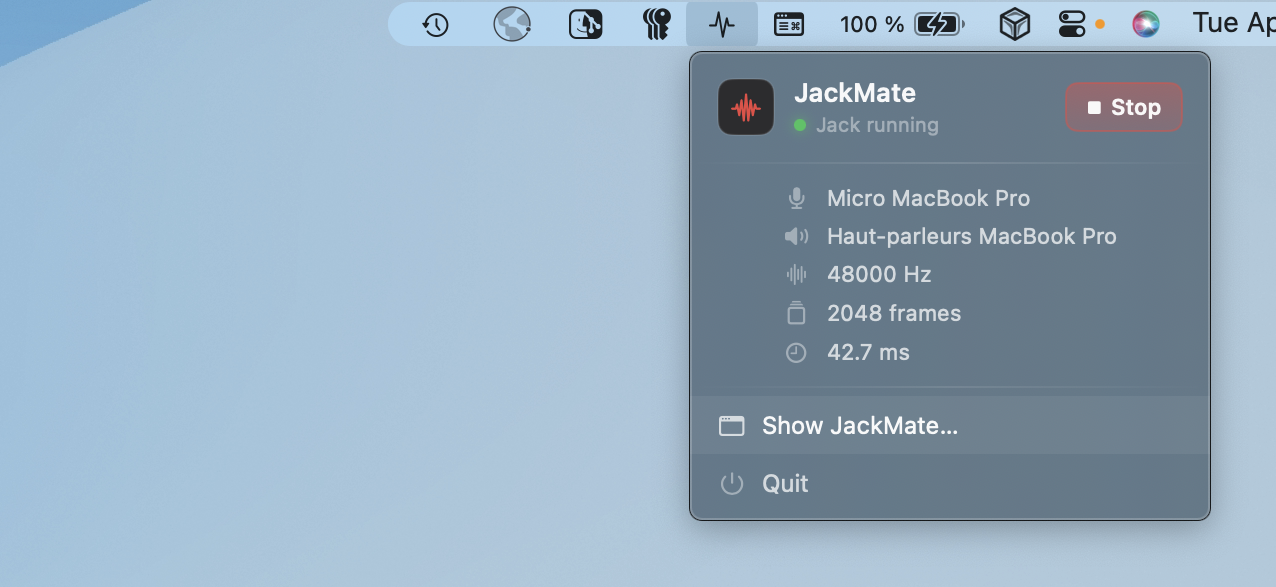
Status icon
The JackMate icon in the menu bar reflects Jack’s state in real time:
| Icon | Meaning |
|---|---|
| Normal icon | Jack stopped |
| Animated / active icon | Jack running |
Click the icon to open the quick control panel.
Quick control panel
Header
The panel header shows: - The JackMate logo - A LED indicator coloured by Jack’s state (green = running, red = stopped) - A Start Jack or Stop Jack button depending on the current state
The button uses the same style as in the main window: same colour, same behaviour.
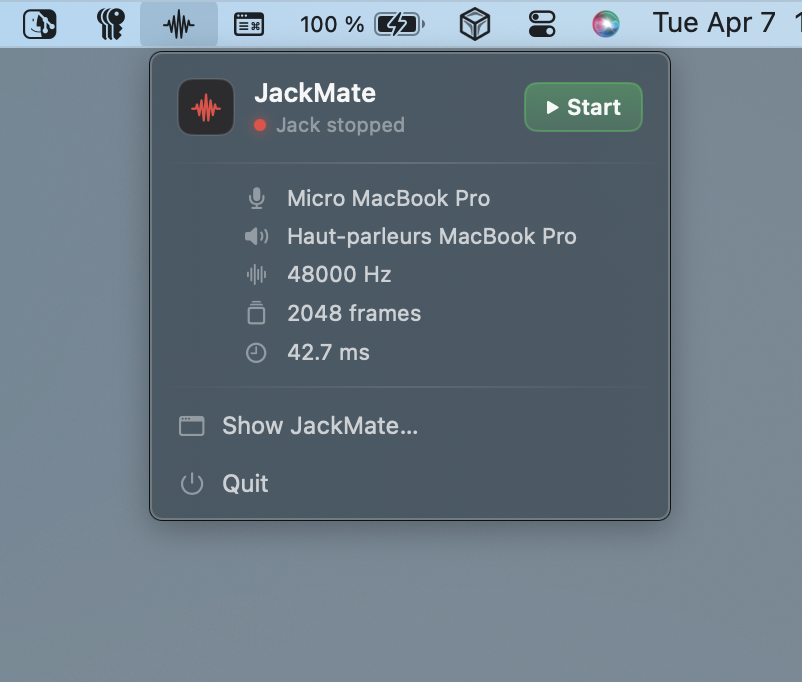
System information
When Jack is running, the panel shows:
| Field | Description |
|---|---|
| Input interface | Name of the active capture interface |
| Output interface | Name of the active playback interface |
| Sample rate | Sampling frequency in Hz |
| Latency | Calculated theoretical round-trip latency |
These values are updated in real time from the active Jack configuration.
Actions
Two action buttons are available at the bottom of the panel:
| Action | Description |
|---|---|
| Open JackMate | Brings the main window to the front (creates it if needed) |
| Quit | Stops Jack (if running) and quits the application |
Background operation
JackMate is designed to run in the background. Typical workflow:
- Launch JackMate
- Configure and start Jack from the main window
- Close the window; Jack keeps running
- Use the menu bar icon to monitor state or stop Jack
Closing the main window does not quit JackMate. To quit completely, use Quit from the menu bar panel, or ⌘Q from the main window.
Auto-launch at login
JackMate can be set to launch at macOS startup via Login Items in System Settings → General → Login Items.
Once configured, JackMate will be available in your menu bar from the moment you log in, ready to start Jack whenever you need it.