JackMoebius


JackMoebius and JackMate, made to work together.
★ New in 2.0.0
JackMoebius lets JackMate expose any native macOS application (Safari, Music, FaceTime, your DAW’s companion apps) as a Jack client. Apps that have no built-in Jack support can then send and receive audio through the Jack graph like any other client, and interact with your native Jack applications.
JackMoebius is a separate virtual audio driver. JackMate drives it, but the daemon must be installed on your Mac for any of this to work (see Installing JackMoebius).
What is JackMoebius
JackMoebius is a bidirectional CoreAudio ↔︎ Jack bridge: the next-generation, functional successor to JackRouter (abandoned since 2020).
Most macOS apps speak only CoreAudio; they know nothing about Jack. JackMoebius creates, on demand, a Jack client for each app you choose to expose, in both directions:
- Output: the app’s sound is injected into the Jack graph (route Safari into Ardour, record a FaceTime call, capture a game…).
- Input: a capture-capable app receives audio from the Jack graph (feed a processed signal back into it).
Everything is driven from JackMate: you never edit a config file or touch the daemon directly.
Installing JackMoebius
JackMoebius is a separate application: a paid app with a 14-day free trial. Get it from its page and install it on your Mac; JackMate detects the installed daemon automatically, with no path to configure.
JackMate 2.1 requires JackMoebius 1.1.0 or newer. If yours is older, JackMate offers to update it.
Once installed, the JackMoebius version appears in the Configuration header, next to Jack’s (see Version indicator). Keep it up to date: JackMate signals when a newer version is available.
Prefer to see it first? A short tour where you expose your macOS apps to JACK, wire and mix them in JackMate, and save the whole setup as a studio:
Enabling exposure
Turn JackMoebius on from the Configuration view, with the “Expose native macOS apps to JACK” option.
- When enabled, JackMoebius starts automatically right after Jack. It does not change the
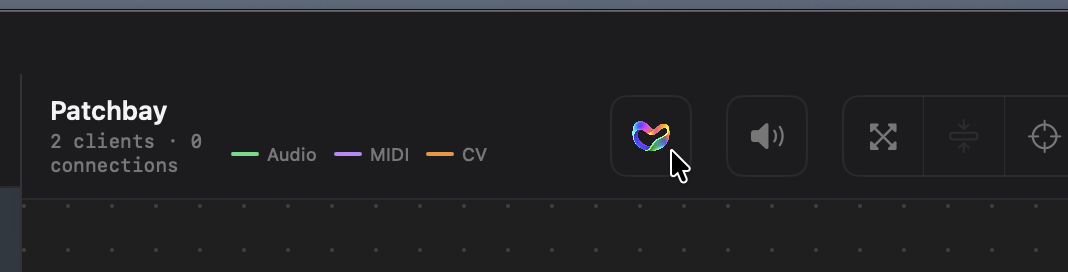
jackdcommand in any way. - A dedicated button in the patchbay toolbar opens the JackMoebius panel (below).
- A JackMoebius status indicator sits next to Jack’s in the sidebar, so you always see whether the daemon is up.

The daemon’s live status is event-driven: JackMate reflects a start, stop or crash immediately, and automatically restarts JackMoebius if it goes down while Jack is running.
The JackMoebius panel
The slide-in panel lists every running CoreAudio app and lets you expose it to the graph. Each row shows the app’s real icon and name, and, for each direction (In and Out), a switch and a pill that says how the app reaches JackMoebius:
| Control | Action |
|---|---|
| Out switch | Expose the app’s sound to the graph |
| In switch | Give the app an input from the graph (no In column for apps that can’t capture) |
| Pill (JackMoebius default or N ch dedicated) | Click it, once the direction is on, to open the Apply panel and change how the app is connected |
| Sliders button (next to the eye) | Show or hide the app’s volume slider (see Per-app volumes) |
Turning a switch on opens the Apply panel: nothing is sent to JackMoebius until you click Apply (Cancel switches it back off). Turning a switch off is immediate. Exposing an app makes its box appear in the patchbay; turning it off removes it.
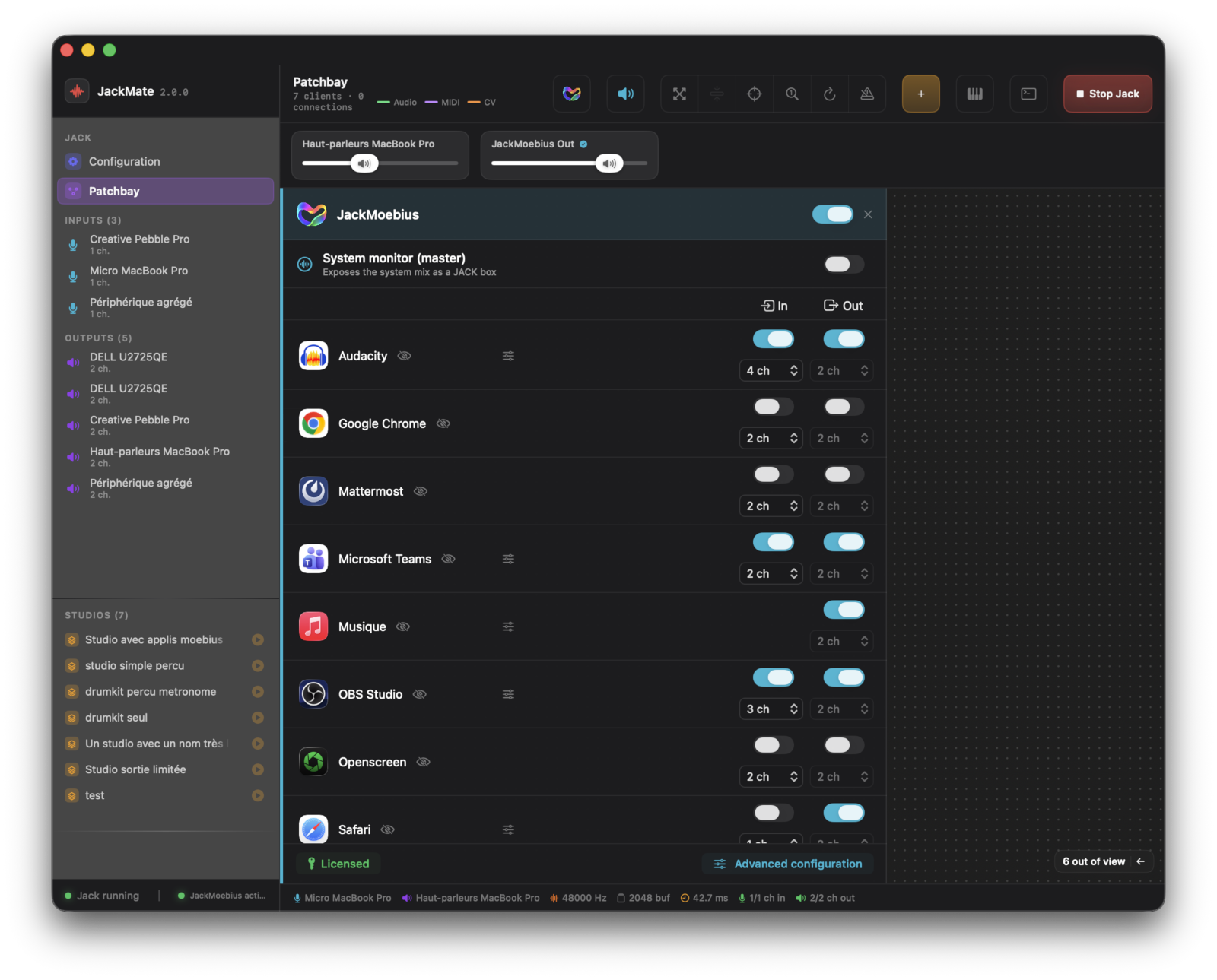
The daemon only sees an app once it enters the audio context (produces or captures sound). An app that is running but silent may take a moment to appear in the list.
Default or Dedicated
★ New in 2.1.0 Each direction of an app has its own backing, chosen independently:
- JackMoebius default: the app goes through the common JackMoebius device, with nothing to set in the app. For the output, the app plays to the Mac’s default output (JackMoebius) in stereo, kept separate from the other apps. For the input, it follows the Mac’s default input, which JackMoebius takes over while any app is in this mode: every app in this mode hears the same stereo feed.
- Dedicated: JackMoebius creates a virtual card named “JackMoebius for <App>” with 1 to 64 channels, specific to that app. You then choose it as the input or output device in the app’s own settings. If the app only offers a single device setting for input and output, set both directions to Dedicated: it is then one duplex card.
By default, the input is Dedicated (2 channels), except for apps known to have no input selector (such as Safari), and the output is JackMoebius default. JackMate remembers your last choice per app and direction and offers it again the next time.
The Apply panel
Clicking a pill opens a small panel under the row: a default | Dedicated choice, a channel-count menu (1 to 64) for a dedicated card, an explanation, and Cancel / Apply. A coloured band says, before anything changes, what Apply will do to the app’s card:
| Band | Meaning |
|---|---|
| Blue | The card is created |
| Orange | The card is rebuilt (a direction added, another channel count): the app sees its device disappear for a moment, then come back |
| Orange | The card is kept without this direction: the app still sees it, but that direction is no longer wired to it |
| Red | The card is deleted |
Your cables are kept across these changes: JackMate notes the app’s cables before the change and reconnects them when its ports are back. When a change would put sources on a shared input that other apps also hear, JackMate asks first.
Capacity
★ New in 2.1.0 The two channel buses are shared by all apps: 254 input channels and 254 output channels in total, and up to 64 channels per app and per direction (a dedicated card). The Inputs / Outputs gauges (Advanced configuration ▸ Reservations) show how full they are, and a thin strip above the patchbay warns as soon as one reaches 80 % (amber) or is full (red).
A card whose input or output was removed keeps the channels of that dead stream: they stay counted as occupied, shown as “reserved but unused”, until the card is deleted or rebuilt. The Reservations tab lists them per app, with a “Free the unused channels” button that rebuilds the card as it is (its app sees its device go and come back for a moment; its cables are restored).
When JackMoebius refuses a change (not enough free channels, an app with no audio context yet, no card slot left…), a red band under the app’s row says why, with the numbers, in your language. If an app’s own dedicated input keeps its card, the band offers “Move the input to default too”.
Advanced configuration
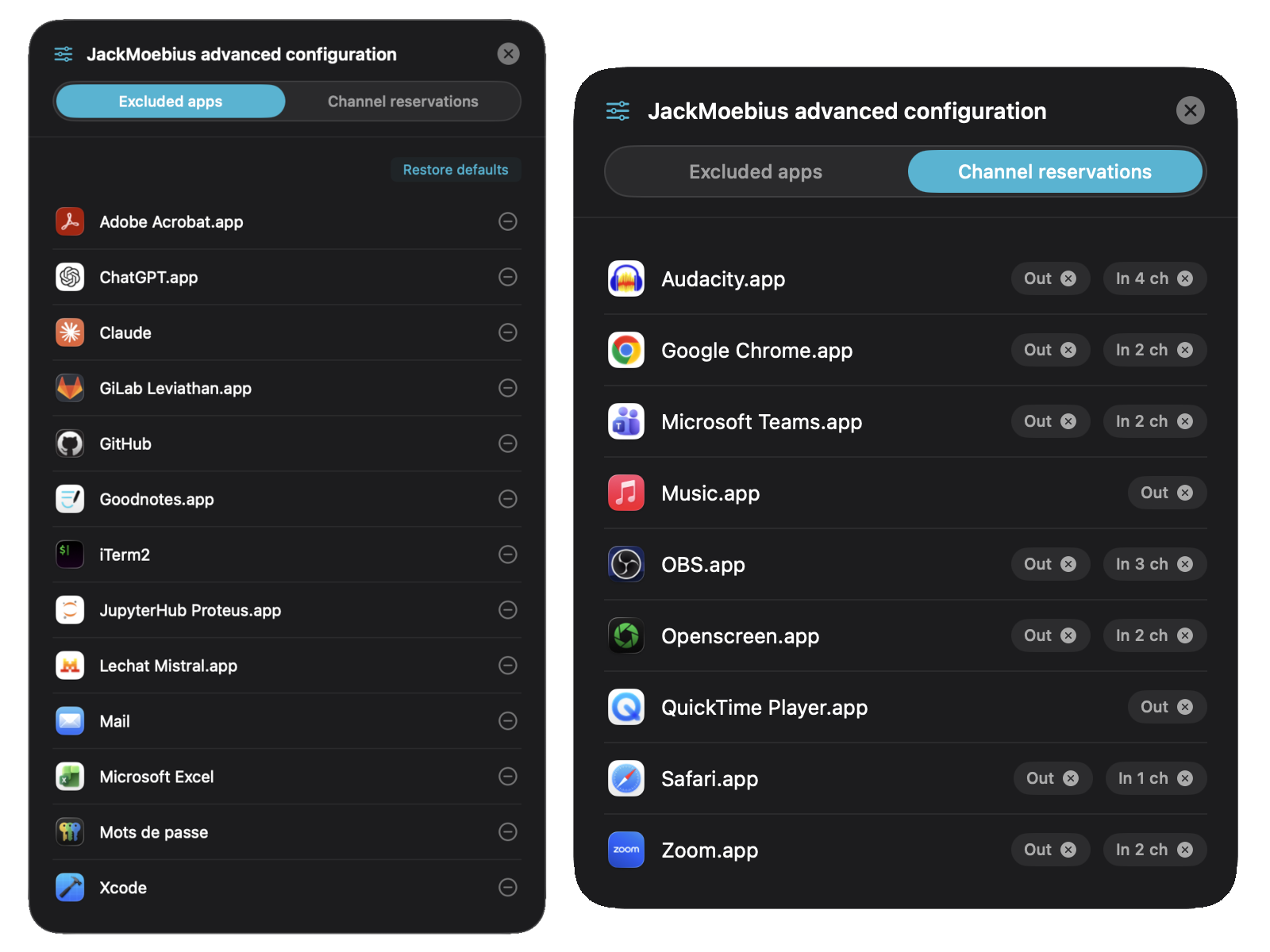
An “eye-off” button removes an app from the selector (with a confirmation if it’s currently exposed), useful for apps you never want to route. The Advanced JackMoebius configuration panel (tabbed) lets you:
- re-enable apps you previously excluded (blacklist);
- free dormant channel reservations left by apps that have since quit, check the capacity gauges, and free the unused channels of a card (Reservations tab);
- in the Advanced / debugging section, always show the JackMoebius system node in the patchbay (see below).
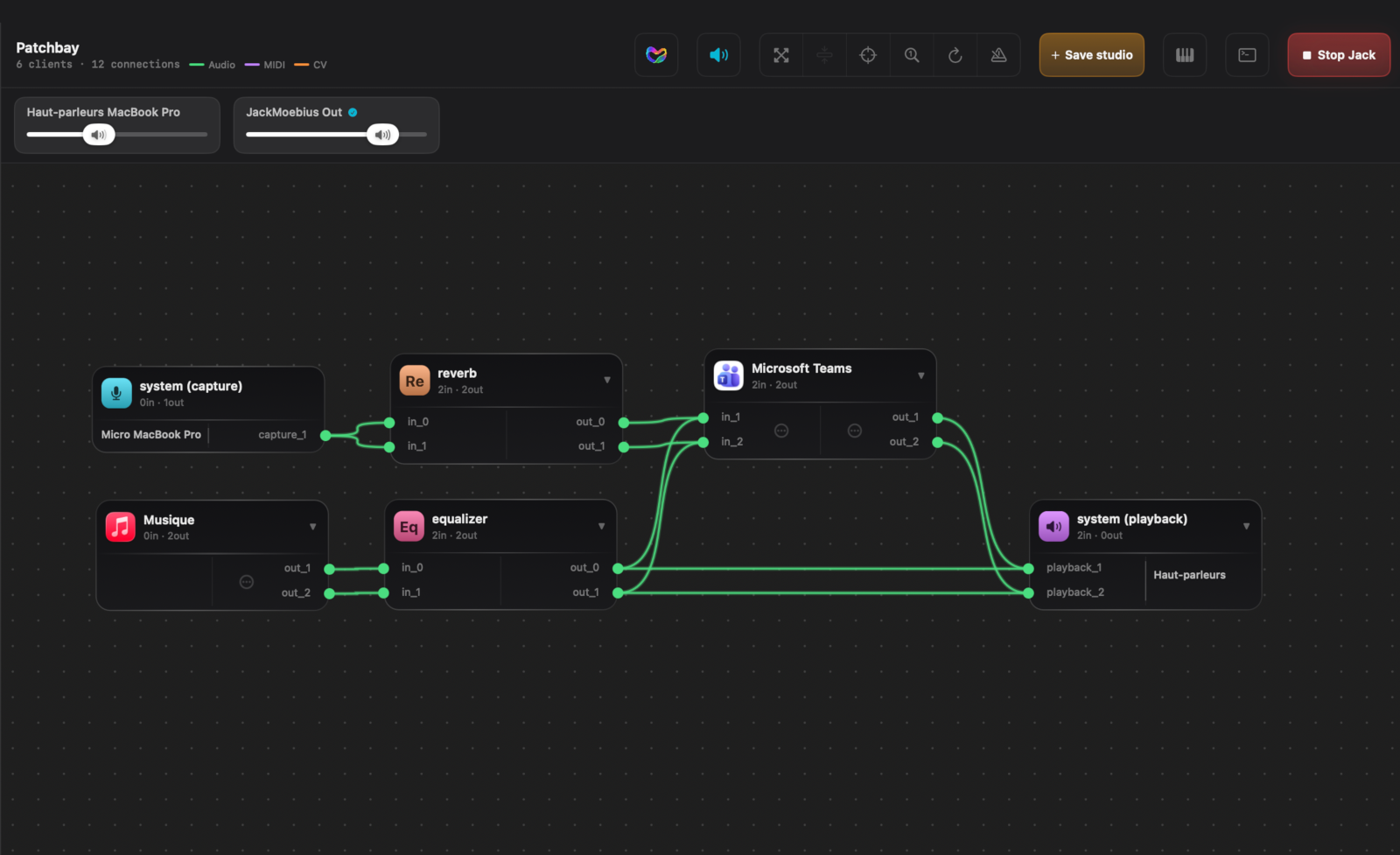
In the patchbay
An exposed app appears as a regular node on the canvas, with two differences from ordinary Jack clients:
- its badge is the real application icon (instead of the two-letter initials badge);
- an app on the shared input has no Jack port of its own, so JackMate draws a box for it anyway, with the two
shared_input_1/2ports.
Clicking the badge opens the usual info sheet, which identifies the box as a JackMoebius client.
Routing status
Because a native app routes audio through a specific CoreAudio device, JackMate watches that an exposed, wired app is actually using the right device:
| Marker | Meaning |
|---|---|
| ⚠ amber on a box | The app is exposed and wired, but isn’t using the correct audio device, so audio won’t flow |
| Discreet cue | The app is selected but currently silent |
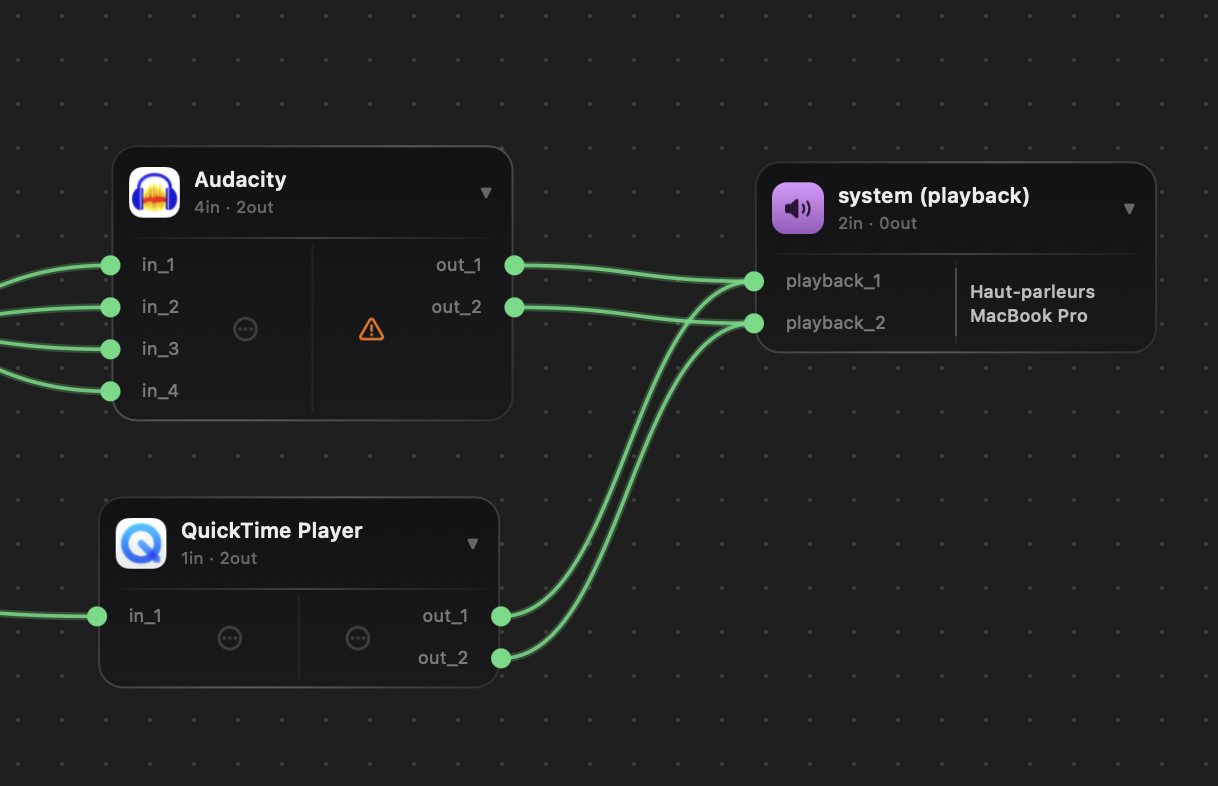
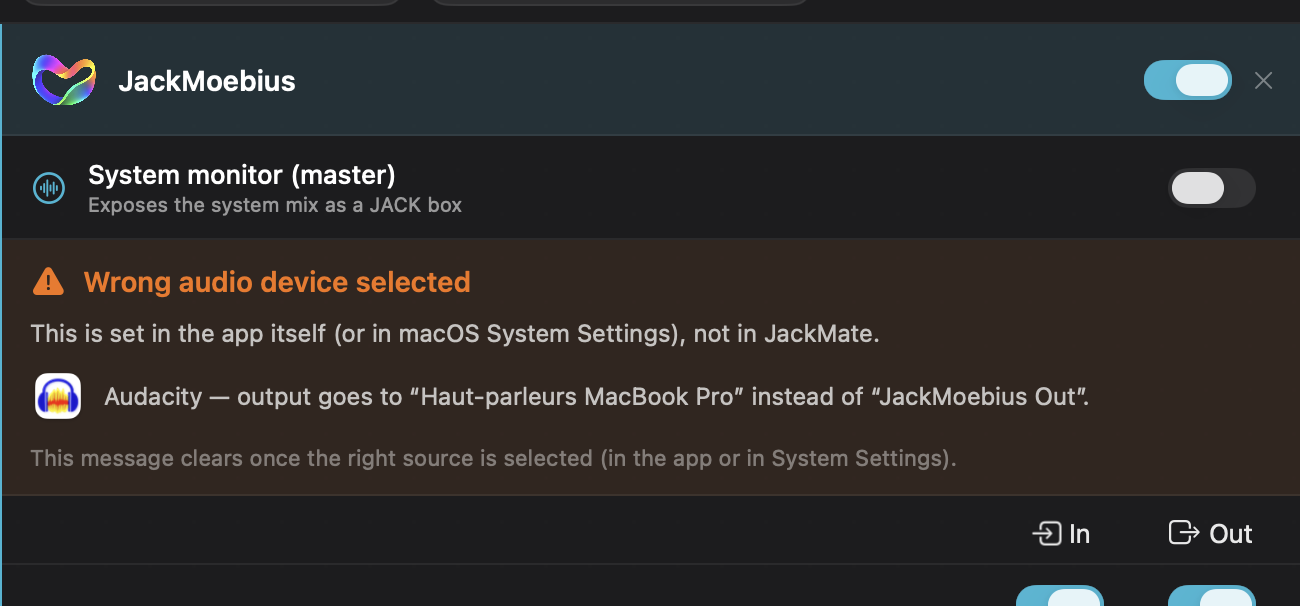
The mismatch is shown at two levels. Under the app’s row (and as a dot on its pill), as soon as you configure a direction that reads or writes another device. And in an alert panel at the top (opened automatically, or by clicking the ⚠) once the app is wired. It lists the affected apps and offers two solutions: select the JackMoebius device in the app’s own settings, or, if the app doesn’t let you choose an audio device, switch that direction to JackMoebius default in JackMate (a Use the default button does it from the app’s row).
Alerts
★ New in 2.1.0 JackMate tells you when something stops JackMoebius from working, in your language:
- The Mac’s default devices. A thin strip above the patchbay appears when the Mac’s default output isn’t JackMoebius although apps play to the default output, or when the default input isn’t JackMoebius although apps read the shared input. A Choose JackMoebius button fixes it (never automatically).
- Transport down. If JackMoebius’s shared-memory transport can’t start, a red banner in the panel (and a red indicator in the sidebar) gives the cause and what to do: service not installed or switched off in System Settings ▸ General ▸ Login Items & Extensions, a version mismatch, another daemon running, or the driver not attached.
- The daemon can’t start. The panel says why (JackMoebius used by another macOS account, missing driver or service…) instead of a bare error.
Per-app volumes
In the JackMoebius panel, every app with an exposed output has a volume control. The sliders button next to the eye shows or hides its slider, placed under the app’s name. By default it is locked (padlock closed): the app follows the “JackMoebius” master level. Click the padlock to unlock it (padlock open, cyan) and set an independent volume for that app with the slider. If you hide the slider of an app that has its own volume, a small cyan open padlock stays next to the button to remind you.
| Padlock | Behaviour |
|---|---|
| 🔒 locked | The app follows the master volume (default) |
| 🔓 unlocked | The app has its own independent volume |
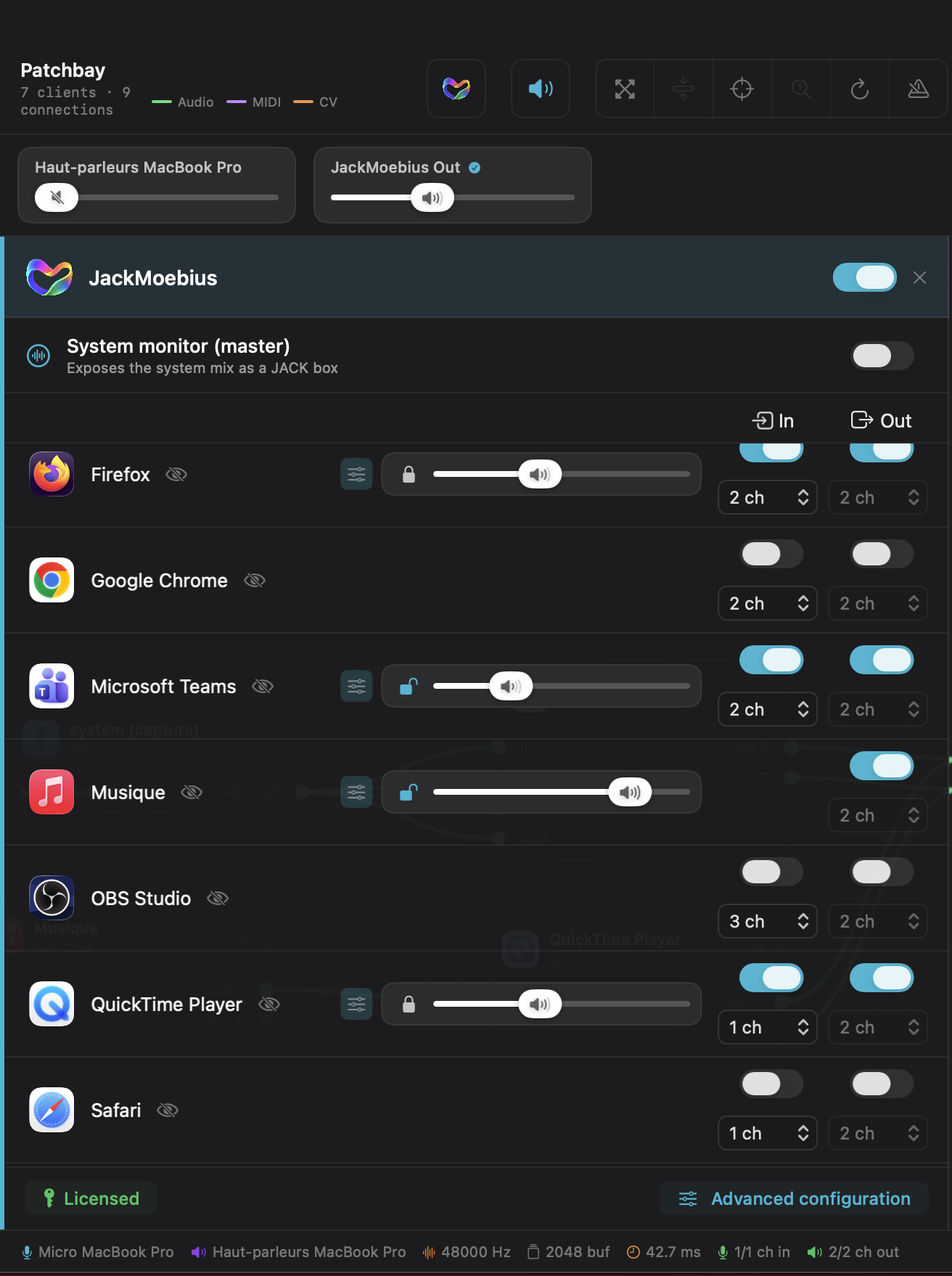
The master output volumes (Jack’s output device and “JackMoebius”) are set from the Volumes bar at the top of the patchbay. See Output volumes.
Version indicator
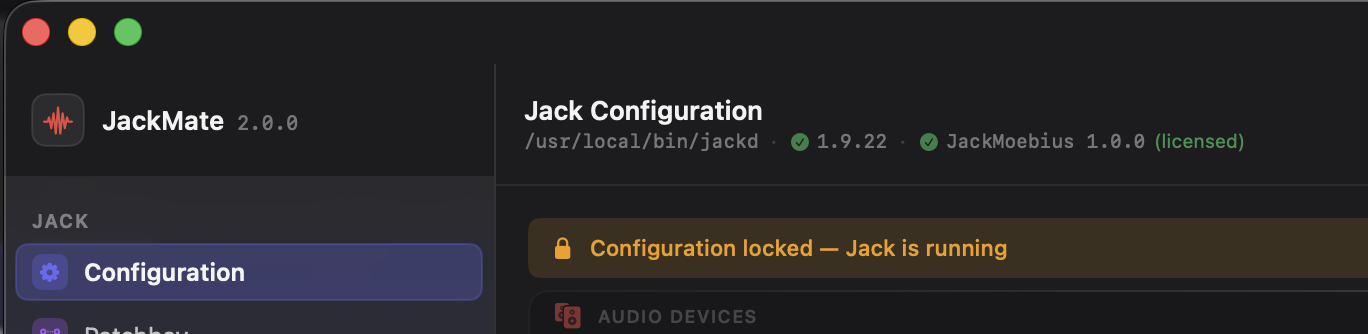
The Configuration header shows the installed JackMoebius version next to Jack’s. As with Jack, it signals when a newer version is available so you can keep the daemon current.
In studios
A studio saves and restores your complete JackMoebius state: which apps are exposed, for each direction its backing (default or dedicated) and channel count, per-app volumes, and which app each shared-input cable was drawn for, along with the output-device volumes. Load a studio and JackMate restarts the daemon if needed, relaunches and re-exposes the apps (one request per app), and restores every volume. See Studios for the details.
Studios saved before JackMate 2.1.0 that include apps exposed by JackMoebius are restored as best as possible (input dedicated, output on the shared stem). Re-save them to move to the new format. Connections to the old JackMoebius:monitor_* ports are ignored (the system monitor no longer exists), and input_default_* is read as shared_input_*.